A direct answer
How do I automate invoices and receipts without losing control?
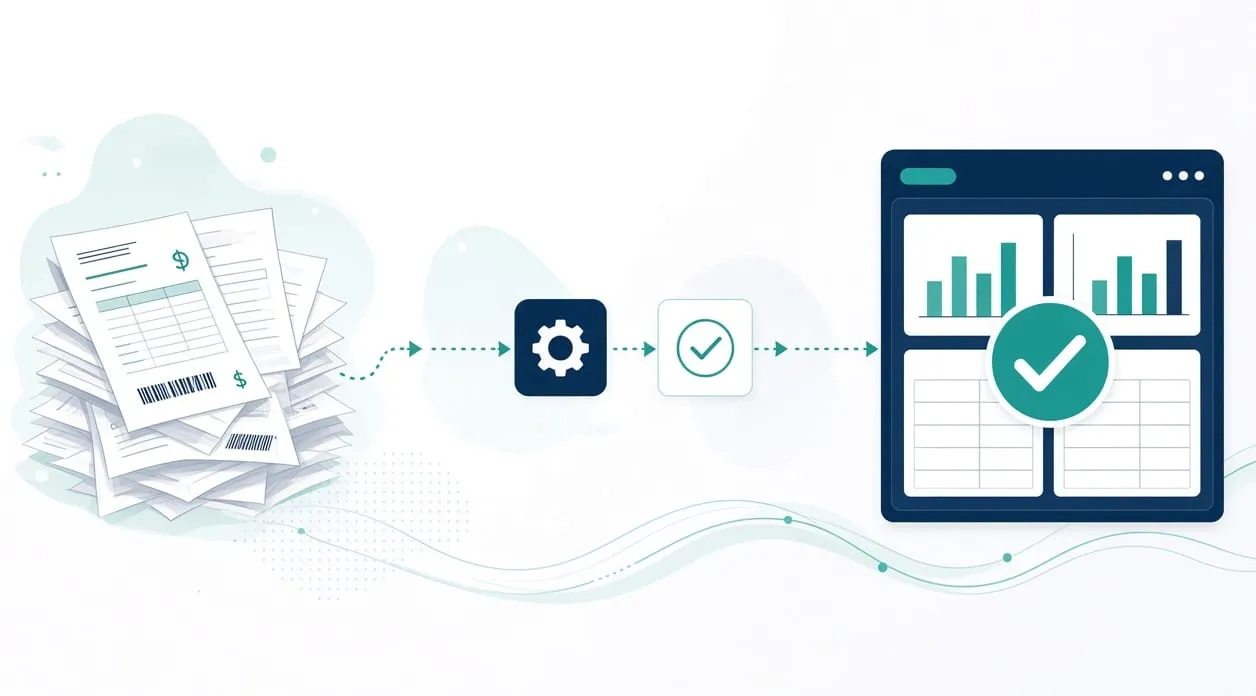
Keep control by letting a workflow handle the repeatable part and by sending anything uncertain to a person. A practical shape is the one on the homepage: identify the message and attachment, prepare a filename from rules you set, file the document, and route unusual items to a review folder. You still verify the document type, the details, the filename, the period, and the destination.
What you are handing over, and what you are not
Automation should take the repetitive handling: finding the attachment, naming it consistently, and putting the clear cases in the right place. You keep the decision about whether the document is what it appears to be.
The homepage describes a workflow for this kind of document. It identifies the message and attachment, analyzes the document, prepares a rule-based filename, files it, and routes uncertain items to a review folder. You still verify the document type, the interpreted details, the filename, the period, the destination, and every unusual item. If the workflow is not sure, it waits. It does not guess its way into the books.
A sequence that keeps the review visible
Understand how documents arrive today. Email is the path the homepage workflow uses. Note the bookkeeping rules you already follow for names and folders. If those rules live only in one person’s head, write them down before you build. A workflow cannot follow a rule nobody can state.
Identify which documents are in scope. Invoices and receipts that match a pattern you recognize are in scope. A contract, a dispute, a tax question, or a document you do not understand is not a filing task. Set those aside for a person, and for a qualified professional when the question is tax or legal.
Build the path in this order. Find the message and the attachment. Read enough of the document to suggest a filename from your rules. File only when the suggestion meets those rules. Send everything else to a review folder that someone actually opens. Do not add a step that posts a payment or changes a bookkeeping record unless you have separately agreed that a person confirms it first. The workflow on the homepage stops at filing and review. It does not claim to pay anyone.
Test against documents you have already filed correctly, and against at least one document that should have been held back. Look at the filename, the folder, and the period. If the held-back document was filed anyway, the check is not ready.
Improve from the review folder. The items that land there tell you which rules are too tight, which are too loose, and which documents should never have been in scope. Adjust the rules. Do not empty the folder by trusting everything.
What control looks like day to day
You can still open the original, rename a file the workflow got wrong, and do the task by hand if the workflow stops. A review queue only helps if a person is responsible for it. What should stay manual is the wider version of this line.
Be careful what you send into an analysis step. Do not include passwords, payment details, or private customer documents. A receipt may show an account detail the workflow does not need. Is it safe to use AI with business data sets out practical steps, without any promise that a tool will keep information private.
When it is not worth it
Do not automate filing if you do not yet have a naming rule. Agree the rule on paper first. A person following a written rule is better than a workflow inventing names.
Do not automate filing if almost every document is an exception. You will build a review folder that contains everything, which is the inbox you already have.
Do not treat document analysis as bookkeeping advice. The workflow can place a file. It cannot tell you whether a tax position is correct. That stays with you and, where it matters, with a qualified professional.
If this is really a copy-and-paste problem, start with how to stop copying data between tools.